There are two parts to thing 7 this week:
7.1 to get to know about RSS, and
7.2 to search for RSS feeds.
Today we have access to huge amounts of information and we can somethimes feel overwhelmed with keeping up to date in an ever changing world. This is where RSS comes to the rescue.
7.1 What is RSS?
RSS stands for “Really Simple Syndication” and is a file format for delivering regularly updated information over the web. It is like visiting all those information sources and web pages in just one place and all at the same time … without being bombarded with advertising… without having to search for new information on the page you’ve already seen or read before… and without having to spend a lot of time visiting each site individually. You do this through a newsreader and RSS.
Tip: It is best to open these links by right clicking and selecting open new window. You can then close the window by clicking on the Red close button top right of screen.
Discovery Exercise (#7.1): Get to know about RSS
- Learn more about RSS and newsreaders.
- Watch the video RSS in plain English
- Feed Me: A gentle introduction to Internet feeds - a good tutorial from Palinet, a library cooperative.
- Create a free online Bloglines account for yourself.
TIP: After you have registered a verification email will be sent to your gmail account. Close the Bloglines screen and reply as instructed in the confirmation email. Your Bloglines account is now ready to use. - Subscribe to 5-10 newsfeeds with your reader (Bloglines). For more information these resources will help you:
- Adding RSS Feeds to Bloglines - A short YouTube video that Helene Blowers created showing how to add feeds.
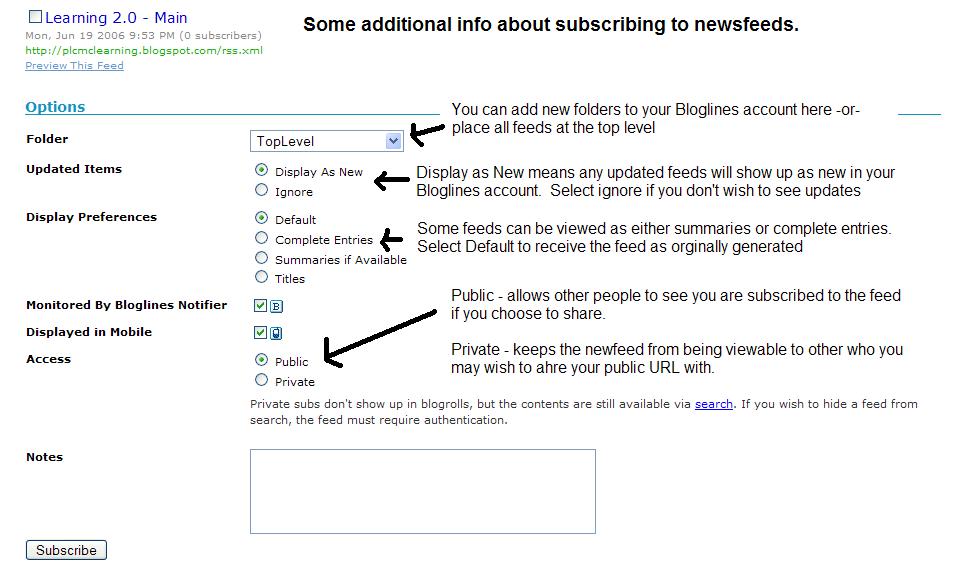
- Additional Bloglines news feed subcription information.
- Here is a list of newsfeeds you could subscribe to:
- NSL Learning 2.0 participants blogs - Subscribe to several of your co-workers feeds. This is as easy as typing the blog URL into the subscribe field in Bloglines.
- News websites: BBC, CNN, tvnz
- The NSL Learning 2.0 exercises blog feed
- On our NSL website there are several feeds you can subscribe to.
- Unshelved - Library cartoon feed.
- Create a post in your blog about this exercise. Don’t know what to blog about? Think about these questions: What do you like about RSS and newsreaders? How do you think you might be able to use this technology in your work or personal life? How can libraries use RSS or take advantage of this new technology?
- Use your gmail account to email northshorelibraries@gmail.com with a link to your blogpost. Please put Exercise #7.1 in the subject heading.
- There are many search tools to locate interest newsfeeds. Have a look at the ones listed below:
- Use Blogline's Search tool - it lets you search for news feeds in addition to posts, citations and the web. Use the Search for Feeds option (drop down at top right of screen) to locate RSS feeds you might be interested in.
- Google blog search and Google News follow the familiar Google pattern and are easy to use.
- Create a blog post about your experience. Don't know what to blog about? Here are some questions to think about ... Which method of finding feeds did you find easiest to use? Which search tool was the easiest for you? Which was more confusing? What kind of useful or unusual feeds did you find in your travels? What other tools or ways did you find to locate newsfeeds?
- Use your gmail account to email northshorelibraries@gmail.com with a link to your blogpost. Please put Exercise #7.2 in the subject heading.
7.2 Searching for feeds
Now that you have a newsreader (your Bloglines account), you can begin adding other newsfeeds that is of interest to you. When visiting your favourite websites look for news feed icons that indicate the website provides feeds on updates. Often a feed icon will be displayed somewhere in the navigation of the site.
Discovery Exercise (#7.2) : Search for RSS Feeds
If you found something else useful, why not post a comment on this blog and let us know about other sites that could be helpful.